
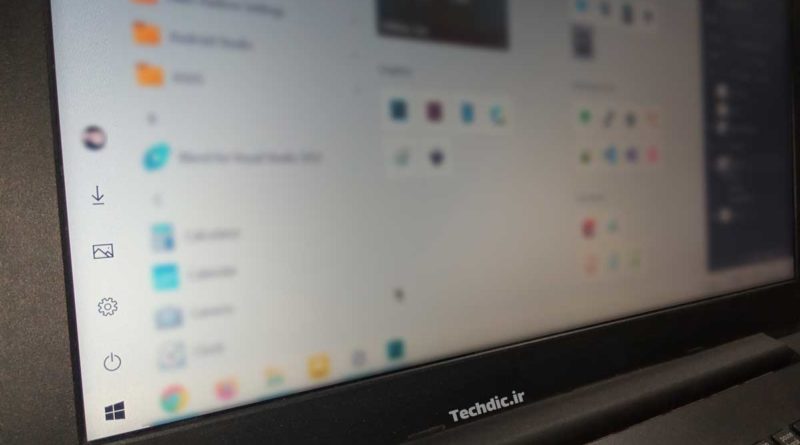
How to add special folders to the Windows 10 Start menu
By default, next to the start menu in Windows 10, there is a narrow bar containing several commonly used icons, including Power (to turn off and restart the system), Settings (to access the Windows Settings section), etc. One of the useful features of Windows 10 is the ability to add certain items and folders such as Pictures, Documents and Videos to this section in the start menu. This way, it is possible to access useful folders faster through the Windows Start menu. In this article, you will learn how to customize this part of the start menu.

How to specify which items and folders to display in the Windows 10 Start menu?
To determine the directories you want to access through the sidebar of the start menu, follow the steps below:
Step 1: Go to the Windows Settings.
Step 2: In the Settings window, choose the Personalization option.

Then choose the Start item.

Step 3: Scroll down the page and select “Choose which folders appear on Start”.

Step 4: In this section, you can add items such as File Explorer and Settings or folders such as Documents, Downloads, Pictures, Music, Videos, etc. to the start menu. Just turn on the switch for the desired items and enjoy!
